


|
|
Cleaning up text pasted from emails or Web sitesThe ease of copying and pasting text from Web sites and email greatly simplifies many tasks in Word, but problems often arise in making the pasted text conform to the style of the document into which it is pasted. One of the most common chores is getting rid of excess line breaks, which cause the text to wrap short of the right margin. There are several ways to work around this problem. Assessing the problem textThe most efficient method of reformatting short lines of text depends on whether the breaks are line breaks or paragraph breaks. So the first line of attack must be to display nonprinting characters:
For more on nonprinting characters, see What do all those funny marks, like the dots between the words in my document, and the square bullets in the left margin, mean?
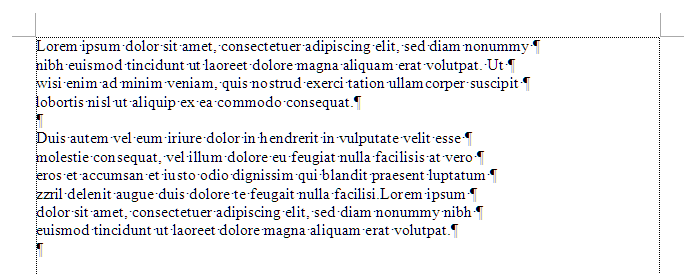
Figure 1. Lines ending in paragraph breaks If each line ends in a
pilcrow or paragraph mark (¶), as shown in Figure 1 above, then AutoFormat may be all you need. If each line
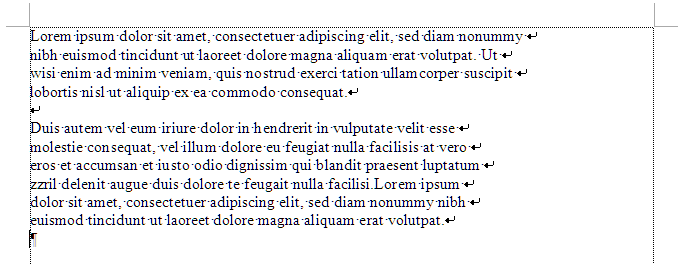
ends in a bent arrow
Figure 2. Lines ending in line breaks Using AutoFormatAccess AutoFormat settings in various Word versions as follows:
No matter what other AutoFormat options you have enabled here, when you select a block of text with a paragraph break at the end of each full line, AutoFormat will delete all the paragraph breaks but the last (in some cases, it will be even smarter and will determine where the “real” paragraph breaks are and leave them intact). To run AutoFormat:
Unfortunately, text pasted from the Web or email nowadays rarely has lines ending in paragraph breaks. But you can force this format by using Paste Special and selecting “Unformatted Text” (in Word 2002 and above, if you have “Paste Options” enabled, you can just Paste and then select the “Keep Text Only” option). This pastes your selection with paragraph breaks instead of line breaks, and AutoFormat will then do the trick. Using Find and ReplaceSometimes, however, you will not want to paste as unformatted text. In that case, what you will most likely get is text with a line break at the end of each line. Provided there is an empty line at the end of each paragraph, cleanup is still relatively simple. It takes just two Replace operations. First pass
Second pass
This removes the line breaks and allows text to wrap naturally.
Harder casesIf there is not an empty line between paragraphs, you will probably have to insert paragraph breaks by hand. If the amount of text is not large, you can scroll through and press Enter wherever a paragraph break is needed. Then use Replace, as above, to replace each line break with a space. This will leave an extra space at either the beginning or the end of each paragraph. You can use Replace again to replace <space>^p or ^p<space> (as appropriate) with ^p. (Note that “<space>” represents pressing the spacebar; you don't type “<space>”!) An alternative approach is to press Shift+Enter to enter an extra line break at the end of each paragraph, then follow the instructions in the section above. Even when the amount of text is very large, there is no really good alternative to manual editing. But if you Paste Special as Unformatted Text and run AutoFormat, you may find that Word is almost as clever as you are at finding where a paragraph ends. Note that the methods described above are suitable only for simple text. If you have copied and pasted an entire Web page, with graphics, tables, and frames, much more work will be required to format it for use in a Word document. Other non-printing characters worth replacing
If you want to automate any of the above steps you can record them using the macro recorder and play them back as needed. Text in tablesOften when you paste text from the Web, it is in a table. Display table gridlines so that you can see what you're dealing with.
If you have ascertained that you are dealing with a table, you have two possible approaches. Leave the table and reformat itIf the text is in several columns, such that a table is actually the most effective way to present it, you can reformat the table so that it will fit your margin width. You can then drag column borders as desired to fine-tune the layout.
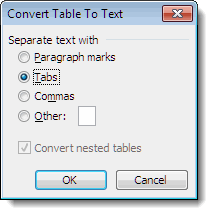
Convert the table to textIf the text is in a single table column, you could just AutoFit that one column to your margin width as instructed above, but often there will be several successive tables involved, and often these tables will be nested, so you may find it easier to work with the text if you get it out of the table.
Figure 3. Convert Table to Text dialog If the pasted content includes several tables, you will have to repeat the process for each one. If the “Convert nested tables” check box is enabled, you will know you are dealing with nested tables; be prepared for more of a mess to sort out! Neat tipsThis following tip has appeared in Woody's Office Watch (WOW). When you cut and paste text from a Web site, there are often leading spaces at the beginning of each line. A very quick way to remove all these spaces is to select the text, center the selection (Ctrl+E), and then left-align the selection (Ctrl+L). All the extra spaces will have disappeared! If the text you have pasted has "reply" characters, such as "greater than" symbols (>) at the beginnings of lines, you could use Replace repeatedly to search for this character followed by a space. An easier way to remove them, however, is to use column select (Alt+drag) to select just the leading characters. When they are selected, press Delete. This article copyright © 2001, 2009, 2011, 2012, 2014, 2023 by Suzanne S. Barnhill. Written in collaboration with Dave Rado and originally published at http://word.mvps.org. |

 pasting
 than
than